How to Make a Transparent Background PNG in HFLUX with Seedream 5.5
What Seedream 5.5 adds and where to find it
Seedream 5.5 is an image model whose official introduction lists transparent background generation and editing, layer separation with editable text, and precise editing that keeps untouched areas as they are
In HFLUX you pick Seedream 5.5 in the Image tab model list, then switch on [Transparent background] to the right of [Draw it] to get a PNG with an empty background, while splitting an image into layers is handled in the [Split into layers] tab at the top of the Image tab
The official page also describes improvements in facial expression, body proportion, product texture and scene lighting, and says scale, perspective and light match better when several reference images are merged
The same page states that accuracy and legibility improved for small, dense text and complex wording such as product labels and posters, along with refinements to layout and colour
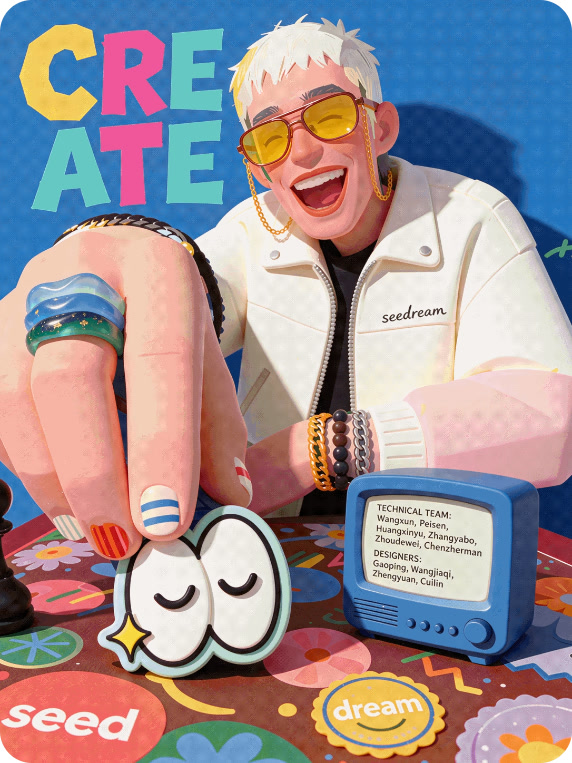
Seedream 5.5 official example · Illustrated man with white hair and yellow sunglasses, CREATE lettering top left

Seedream 5.5 official example · Woman with purple sunglasses and round earrings in an orange seedream top
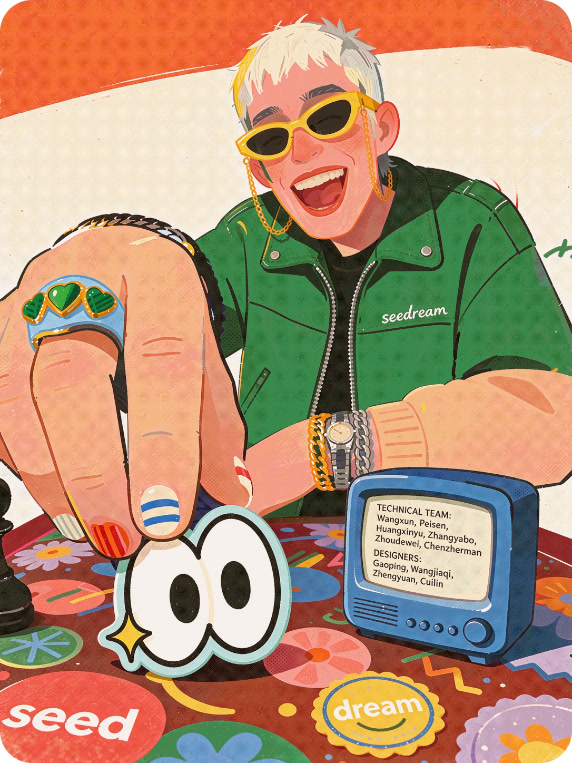
Seedream 5.5 official example · Illustrated man with white hair and yellow sunglasses in a green jacket

Seedream 5.5 official example · Hand wearing several rings on a pink background

Seedream 5.5 official example · Woman in a light blue shirt and white trousers by a rusted metal wall

Seedream 5.5 official example · Woman in a polka dot top with a red bag beside a city train

Seedream 5.5 official example · Man in a long navy coat leaning on a post in the street

Seedream 5.5 official example · Woman in headphones and a fur coat on a palm-lined street

Seedream 5.5 official example · Woman in black by a stone wall and fallen leaves
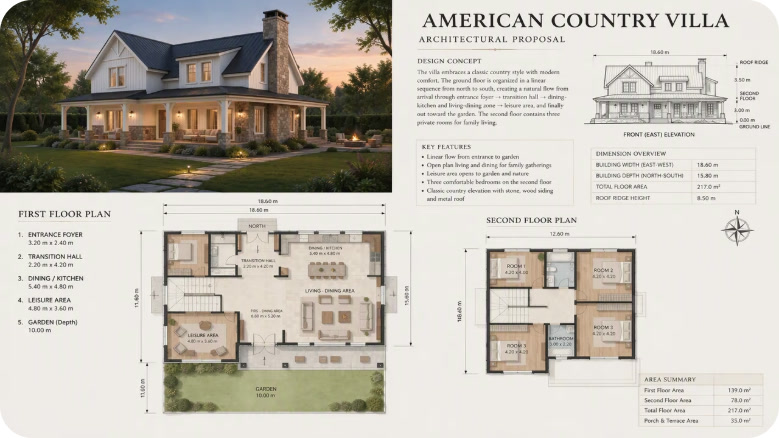
Seedream 5.5 official example · AMERICAN COUNTRY VILLA architectural proposal with house photo, floor plans and small text
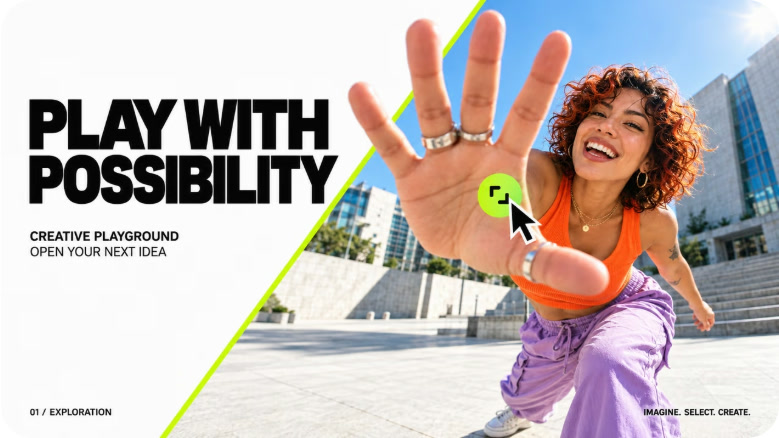
Seedream 5.5 official example · PLAY WITH POSSIBILITY lettering with a woman reaching out her hand

Seedream 5.5 official example · GRAVITY OFF lettering with a transparent sneaker
Seedream 5.5 and Seedream 5.0 Pro are not the same here
The comparison table in the official tutorial document states that Seedream 5.0 Pro does not support making a transparent background image from text alone, and that for image-based runs it accepts only one reference PNG that already has a transparent background
The tutorial also notes that Seedream 5.5 can produce a transparent background from text alone, that up to 10 reference images can be attached, and that attached photos do not need transparent backgrounds themselves
This difference is visible on screen in HFLUX, where the [Transparent background] button appears only when the model is Seedream 5.5 and [Single Image] is selected
Switching to another model hides the button and turns it off, so check the model selection first if you cannot see it
The Precise edit (mark area) button, which targets part of a photo by coordinates, appears when Seedream 5.0 Pro is selected
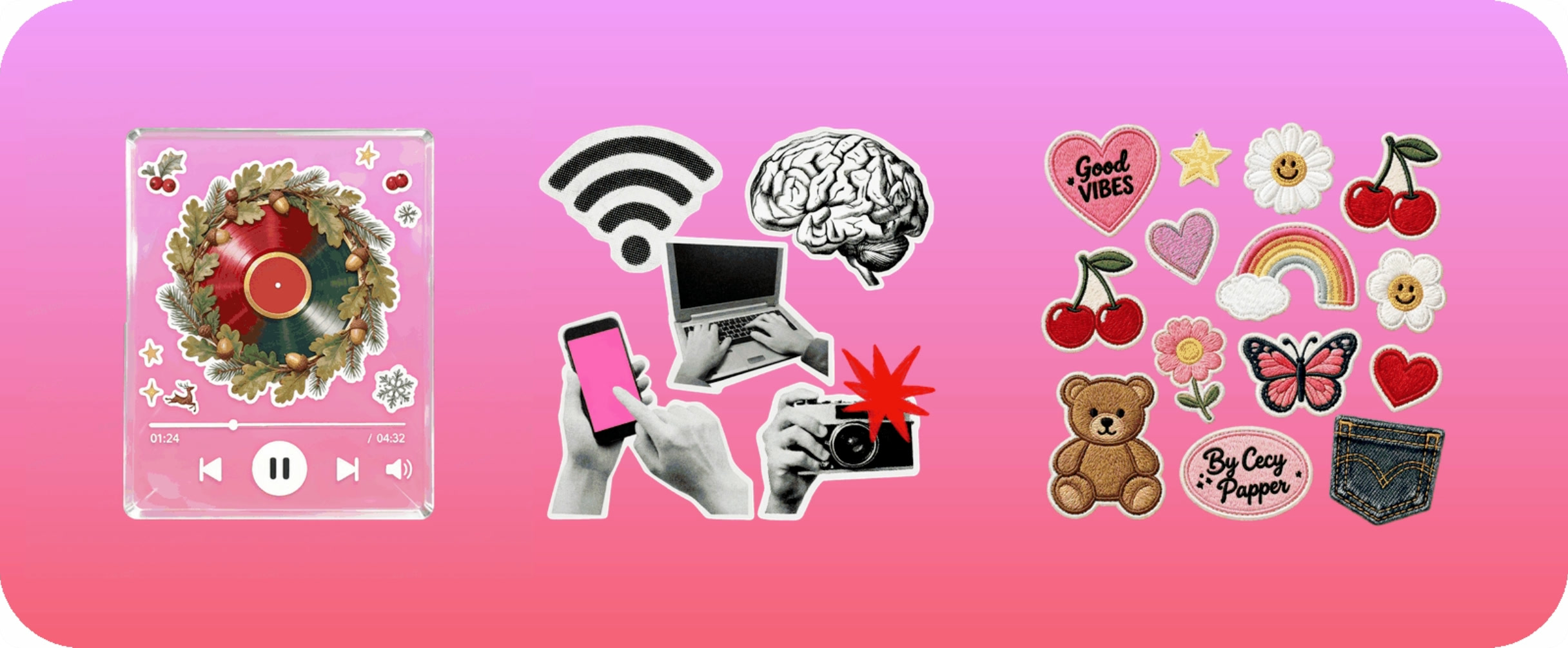
Seedream 5.5 official example · Transparent acrylic music player, black and white collage stickers and embroidered patch stickers on pink
Steps for a transparent background PNG
Open the Image tab and choose [Single Image] at the top
Select Seedream 5.5 as the model
Find the [Transparent background] button to the right of [Draw it] and turn it on
Write what you want to make, and attach reference photos if you need them
Press [Generate] and the result comes out as a PNG with a transparent background
The on-screen guidance in HFLUX states that this works both from text alone and with reference photos
The same route exists on the CANVAS node canvas, where selecting Seedream 5.5 on an Image node shows a transparent background icon in the tool row above the node, and turning it on before [Generate] produces a transparent background PNG in the same way
Steps for splitting an image into layers
Press the [Split into layers] tab at the top of the Image tab, which stays on Seedream 5.5 if that model was already selected
Attach exactly one photo in PNG or JPEG at 512x512 or larger
Leave the field for what to separate empty to let the model decide, or write the elements you want pulled out
Press [Split into layers]
When it finishes, the layer studio opens, where you can change order and visibility and save a merged result
In HFLUX a single run splits into up to 17 pieces including the base
Layer separation is available on Seedream 5.5 and Seedream 5.0 Pro
The official introduction describes the output as reusable background, element and text layers, and says that when no separation method is written, the split follows the complexity of the image and the number of pieces set
HFLUX does not display text recognition results on screen

Seedream 5.5 official example · The word seedream with each letter in a different texture
Where the results are used
The official document lists stickers, icons and product assets as uses for transparent background images
Because the background comes out empty, the image suits work that places it over another screen as it is
A layered result is used by keeping background, elements and text apart and stacking them again
For designers working on dense label or poster text, the official page points to the improvements in small text accuracy and layout
For multi-step revisions, the tutorial advises feeding the image you just made as the next input and stating clearly what changes and what stays
The official introduction page also collects example images made by users

Seedream 5.5 official example · Glass-style app screen (Create A Better Tomorrow)

Seedream 5.5 official example · Cat character in yellow sunglasses and a green jacket
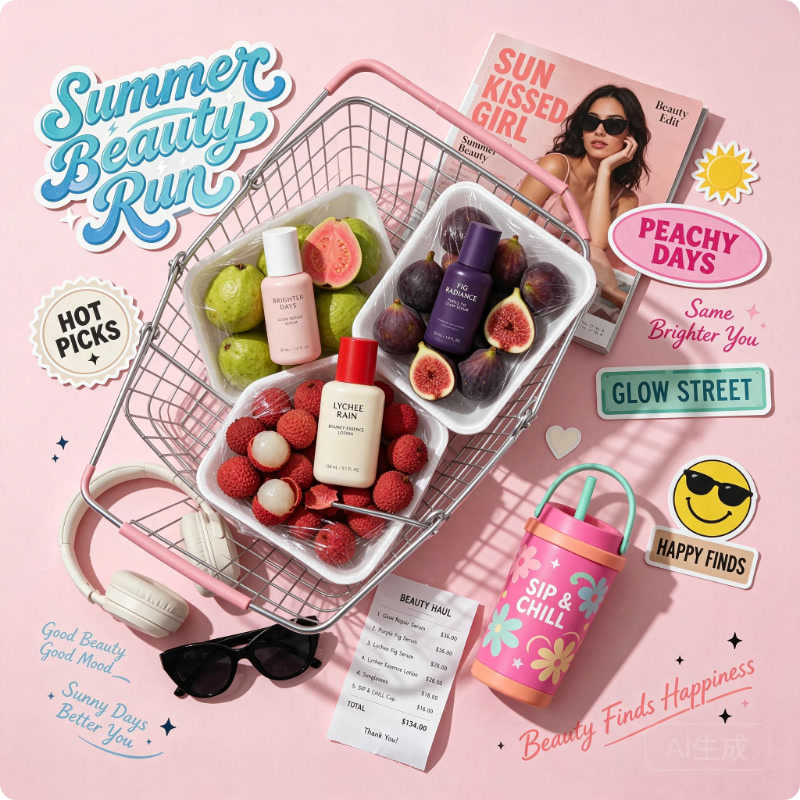
Seedream 5.5 official example · Summer Beauty Run lettering with cosmetics and fruit in a shopping basket

Seedream 5.5 official example · LIVE TONIGHT collage poster with a woman

Seedream 5.5 official example · I DON'T DO BASIC NAMING collage with a woman
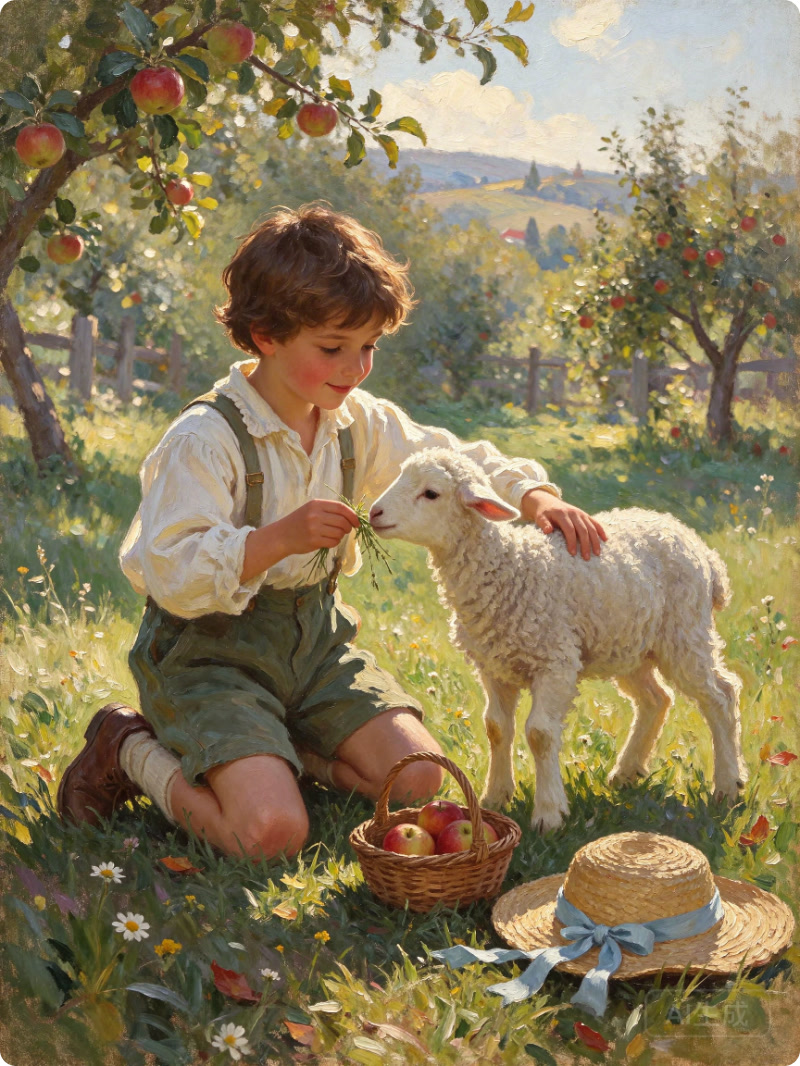
Seedream 5.5 official example · Boy stroking a lamb under an apple tree

Seedream 5.5 official example · Three children in a 3D animation style

Seedream 5.5 official example · OH, YES!! lettering with felt duck figures

Seedream 5.5 official example · Woman reaching her hand toward the camera
Quick reference
Transparent PNG: Image tab, [Single Image], Seedream 5.5, [Transparent background] on, write the prompt, [Generate]
Layers: Image tab, [Split into layers] tab, one photo, elements written or left blank, [Split into layers], layer studio
HFLUX runs in the browser with nothing to install, so you can change models and check results right away
Start at hflux.co.kr


댓글
댓글 쓰기