AI Animation Production: Making the First Scene of "1945" as a Vertical Short-Form Animation in HFLUX SCENE

"1945": a feature screenplay turned into a vertical short-form animation
AI animation production in HFLUX starts in the SCENE tab, where you upload a finished script, choose a visual style and an aspect ratio, and carry the project through to shot video
HFLUX STUDIO uploaded the opening scenes of the feature-length screenplay "1945" to HFLUX SCENE and built the first scene as a vertical 9:16 2D short-form animation
The project settings were an aspect ratio of 9:16, a resolution of 720p, a visual style of 2D Anime/Illustration, Seedance 2.5 as the video engine and sound turned on
The first scene covers a snow-covered wasteland in 1945: an old Russian-made truck carrying shivering passengers is attacked by a band of raiders, shots fired from a hilltop bring the raiders down, and the marksman is a Korean gunman raised in Russia who wears a long coat and a western-style hat
He takes out a black-and-white photograph of his father in uniform while searching for someone, fuels a raider's motorcycle and rides off across the wasteland
The scene was broken down into 10 shots of 15, 20 and 30 seconds, 180 seconds in total
Produced by HFLUX STUDIO
Short-form animation and NAVER WEBTOON's Cuts
Short-form animation, often called short anime, has a dedicated place to publish and watch
According to NAVER's official press releases, NAVER WEBTOON began the gradual rollout of its short-form animation service Cuts on 25 August 2025 and launched it officially on 1 September, available to anyone on the NAVER WEBTOON app and on PC and mobile web
The same release describes Cuts as a user generated content service where anyone can upload and watch animations of up to two minutes, and states that the short-form format was adopted because it is easier to produce than live action or long-form animation, widening creative freedom
A press release dated 24 June 2026 announced Cuts Make, an app for making short-form animations from webtoon intellectual property approved by the original creators
HFLUX SCENE has a different starting point: it takes a script you already have, fixes the characters, locations and props, and produces the shot video from it
How to produce an AI animation in the SCENE tab
1 Open the SCENE tab, upload a script file in txt, pdf or docx or paste the text, then press [Create project]
Scenes are split by the scene headings in the script
2 On the first screen choose the setup mode with [Manual setup] or [Auto-generate], the AI engine, the aspect ratio, the resolution and the visual style
There are 16 visual styles, and for animation you pick from options such as 2D Anime/Illustration or Cel-shaded illustration
According to the official guide, once a style is chosen, the character sheets and every shot image and video are unified in that style
3 When the scene list appears, press [Extract story elements] to organise the synopsis, genre, characters, locations and props, and correct anything on the Script screen
For "1945" the extracted genres were action, western, period drama, thriller and drama
4 In Assets, fill in each card on the Characters tab, Locations tab and Props tab with an AI generation, a library item or an upload, and use [Batch generate] or [Generate all] for empty cards
Characters also have [Costume · hair & makeup] and [Voice setup]
In "1945" the cards included the gunman, the raider chief and the truck driver, locations such as the wasteland and the hilltop, and props such as the Russian-made truck and the black-and-white photograph, and voices were set with [Voice setup] for eight characters
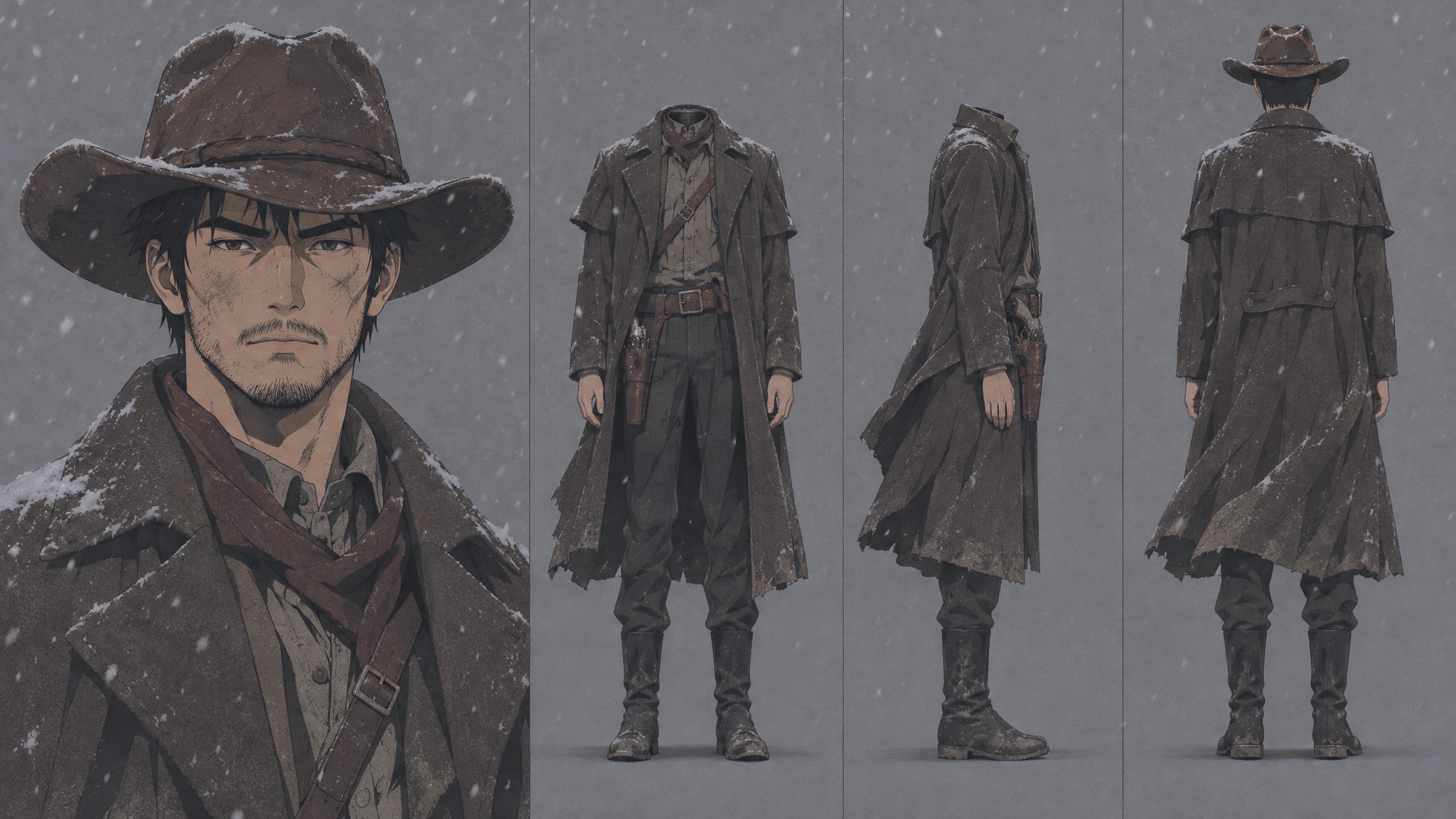
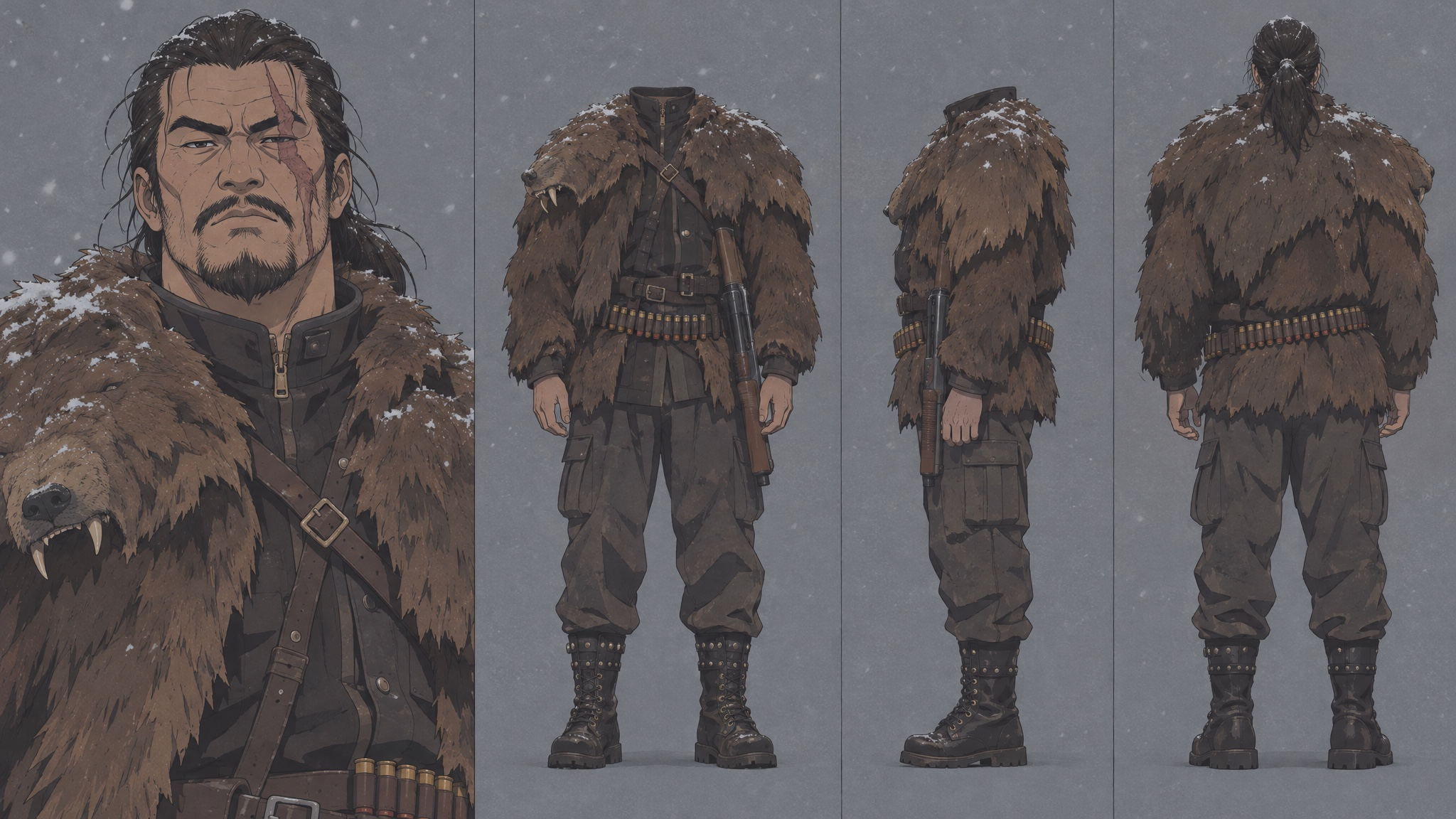
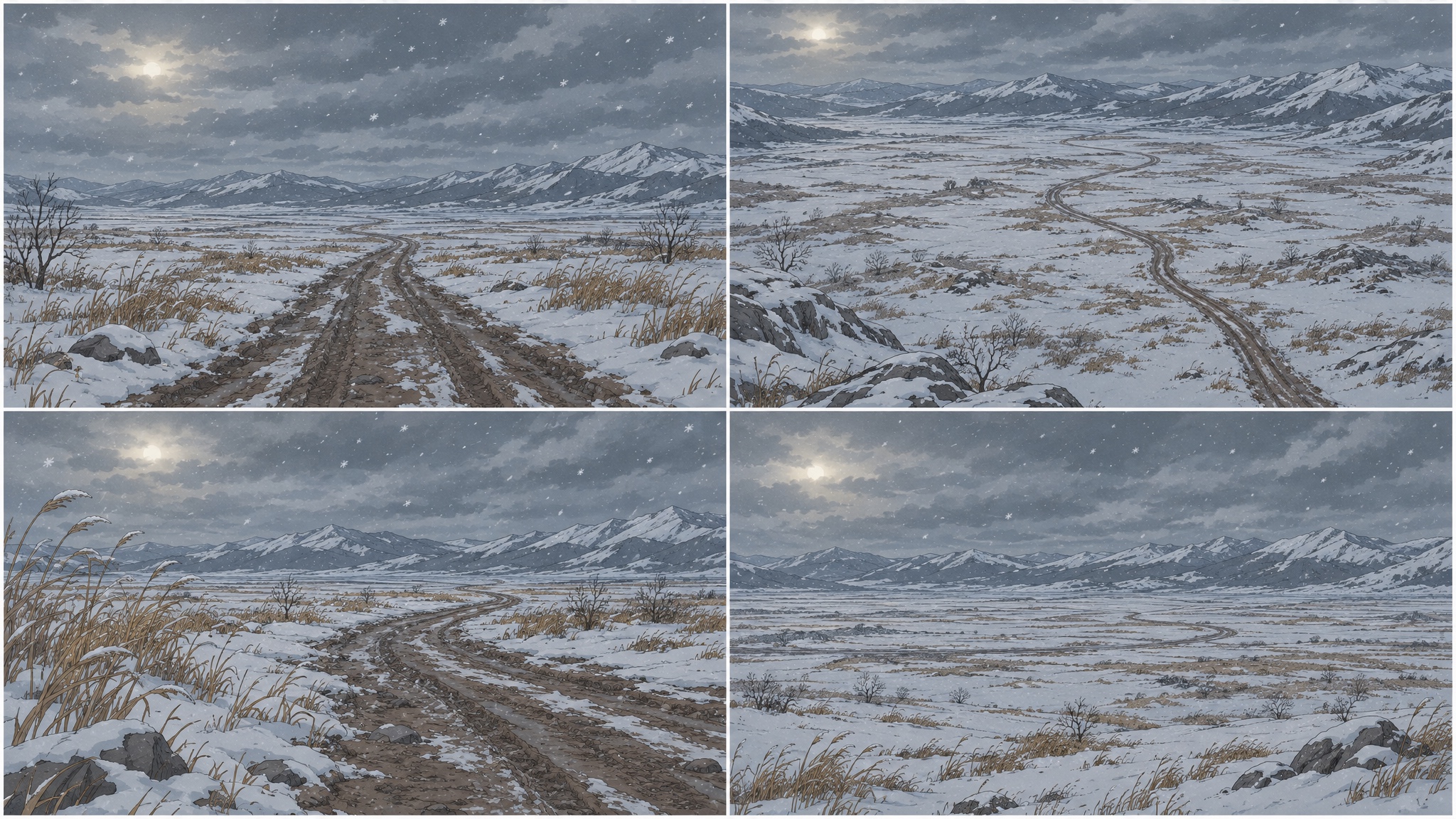
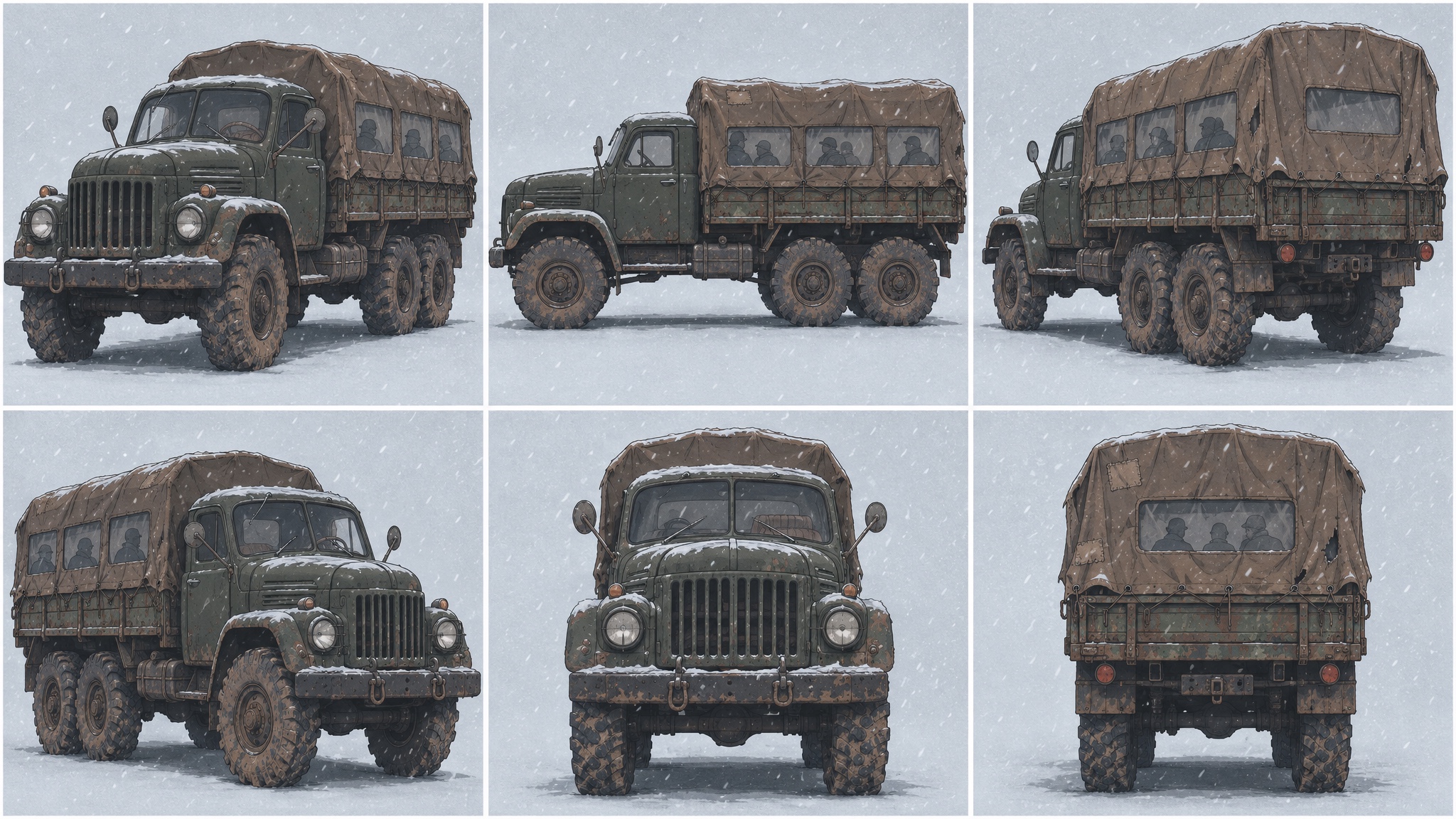
5 On the Production board, break each scene down into shots, make the first image for each shot, then move on to shot video
One shot runs up to 30 seconds on Seedance 2.5 and up to 15 seconds on the Seedance 2.0 family, and a long scene is divided into several shots at the breakdown step
6 Press [Start full auto-production] to generate the images and video in order, and correct a finished clip by writing only the part to change in [Edit video] and pressing [Apply edit]
What stays fixed: the script, the people and the places
The official guide states that dialogue and action lines are split into shots without edits, and that the AI only adds production information such as shot size and lighting
In "1945" the action lines and dialogue went into the shots untouched, with shot size, camera angle and camera movement added to each shot
The guide also states that the character, location and prop images set in Assets carry from shot to shot, keeping the same person in the same space, that shots in the same place and time of day receive the same spatial description, and that the first image made for a location is attached as a reference for the next shot image so the set holds
On a SHOT card, [Add insert] places a prop or hand close-up shot directly after it while keeping the place, background and lighting the same as the previous shot
Questions about AI animation production in HFLUX
Can characters speak their lines?
With the video engine set to Seedance 2.5 or a Seedance 2.0 model and sound turned on, shots with dialogue are generated as video of the character speaking that line, and Korean is supported
Shots without dialogue receive the ambient sound of that scene
How do I check the flow before committing to a look?
The official guide suggests starting at a lower resolution with a faster engine to check the flow, then raising the engine and resolution and generating again, with the aspect ratio fixed after the first generation
"1945" was handled the same way, with the first scene alone broken down into shots and taken through to video first
Can I work from a phone?
You can view and check work on a phone, and the create buttons in STORY and SCENE are used on a PC
Starting without a finished script
If the script is not written yet, write the scenario in the STORY tab and hand it over with [Send to SCENE]
If you only have keywords, start in the FLOW tab and continue in the order FLOW, Assets, Production board on the same board
To take AI animation making from one script through to shot video, open hflux.co.kr, go to the SCENE tab and upload the file


댓글
댓글 쓰기