How to Make an AI Drama, Ad, Animation or Short Film in HFLUX FLOW, Seen Through a Korean AI Makjang Comedy
One flow, four kinds of video
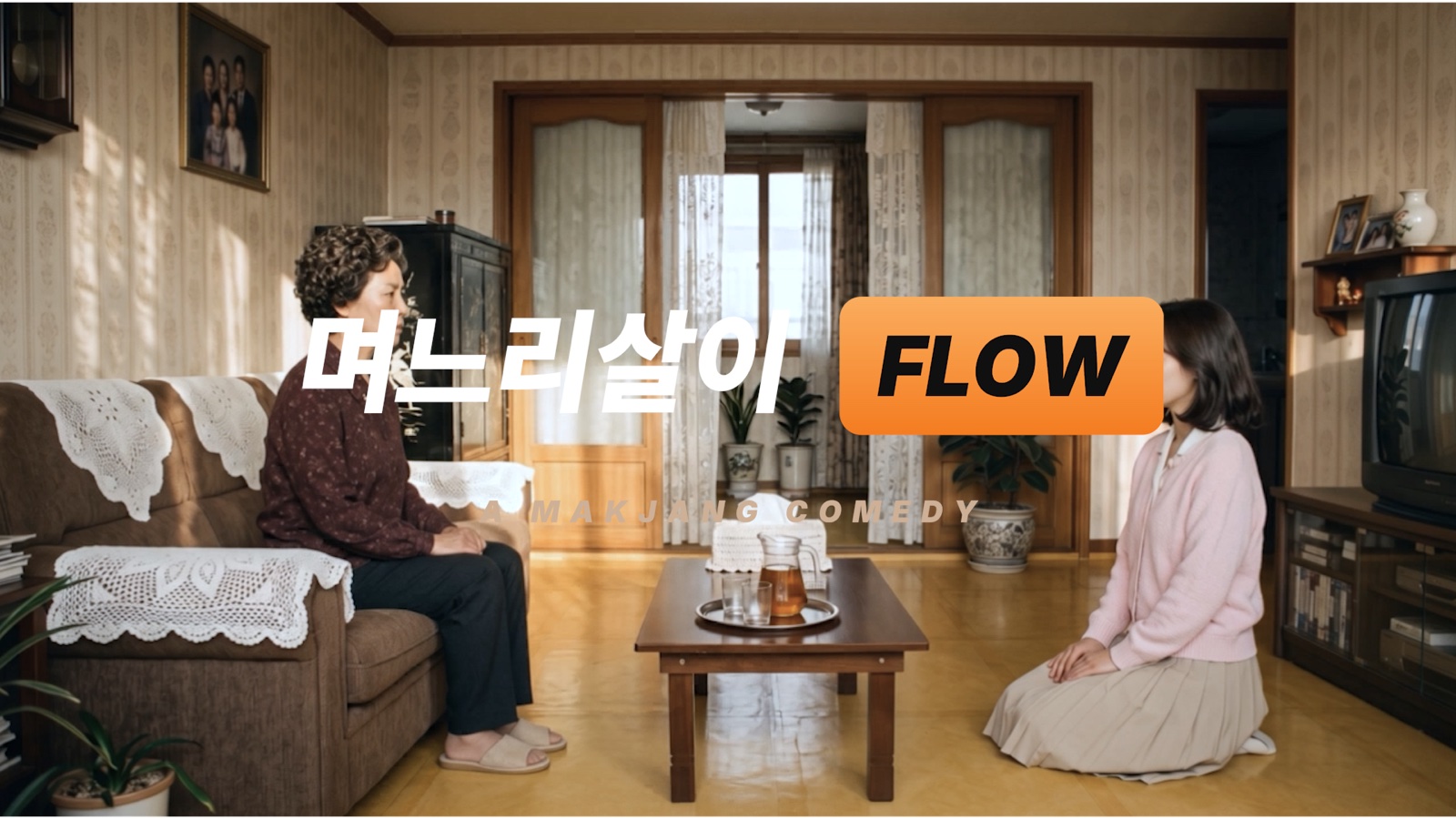
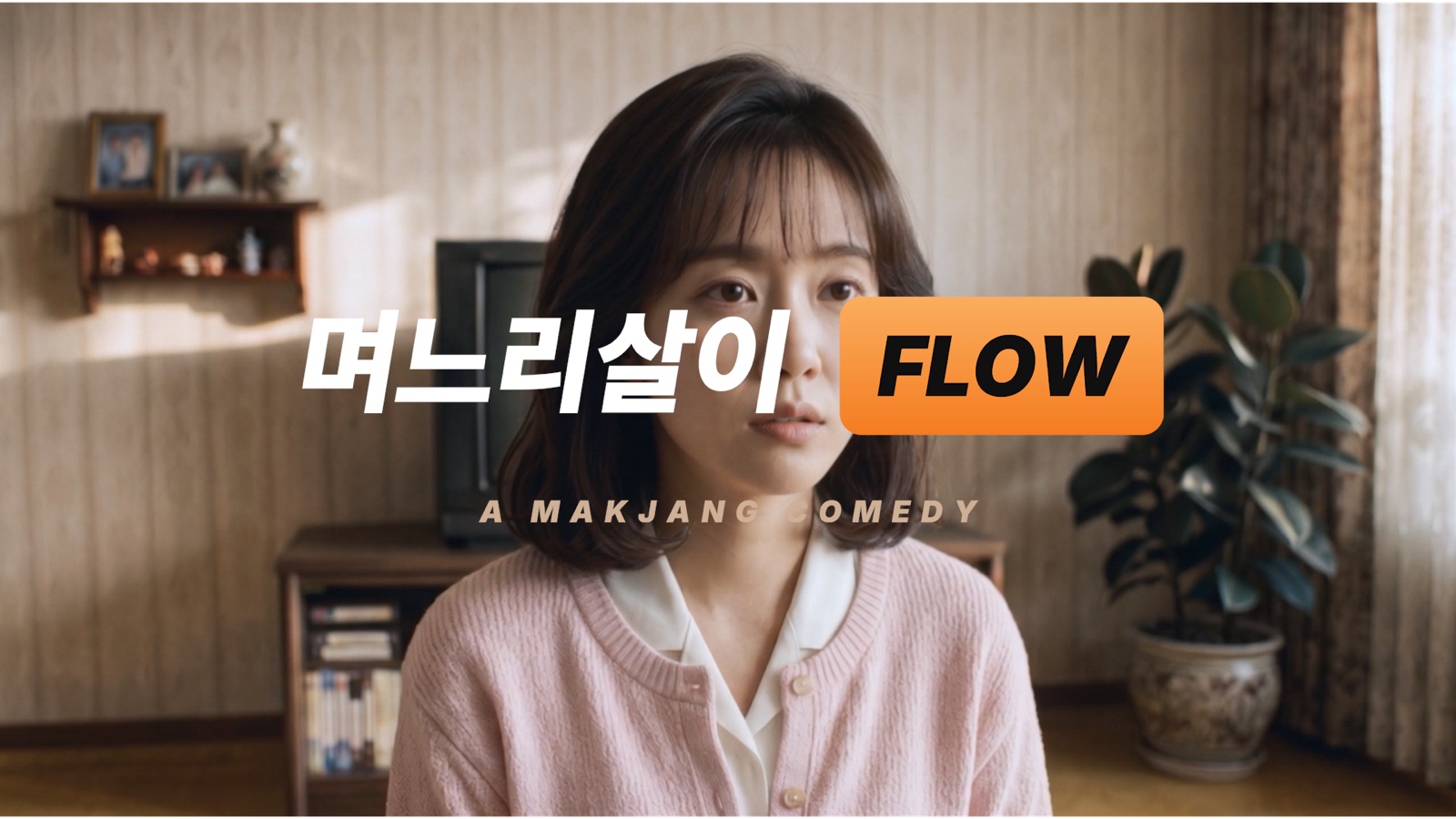
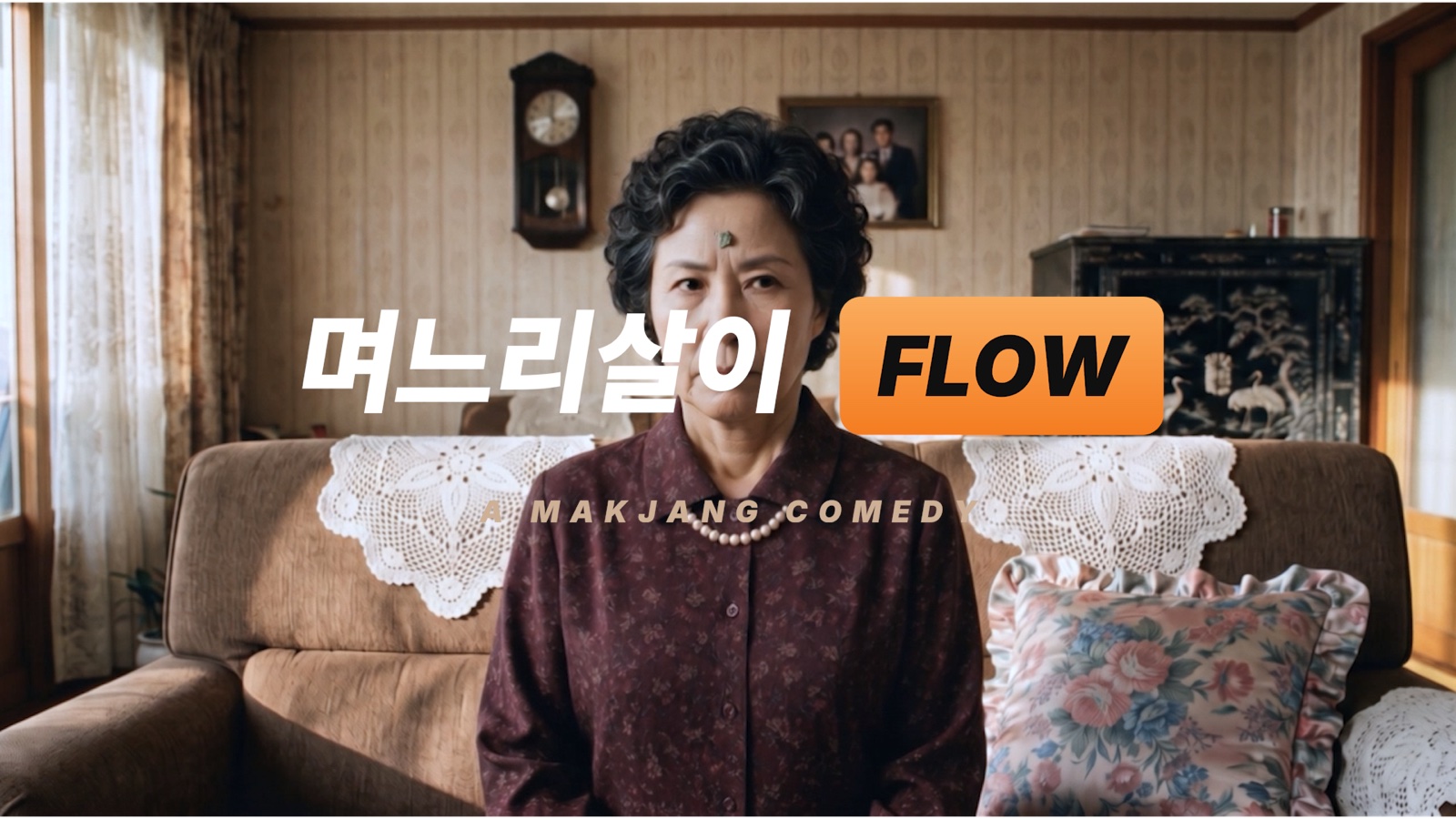
In a short Korean AI makjang comedy about a mother-in-law and her daughter-in-law published on the HFLUX YouTube channel, the cuts change but the same two faces, the same hairstyles and outfits, and the same 1990s living room with its floral wallpaper and brown sofa carry across the frames
In the FLOW tab in HFLUX, you write keywords, add what you have, and move through FLOW, then Assets, then the Production board before exporting an MP4 from the Edit tab
The piece runs about 40 seconds in 16:9 with Korean dialogue and was made following the same working order as FLOW
Starting a project in the FLOW tab
You do not need a finished script
In the FLOW tab, write keywords and add images, documents or video to create a project
Up to 14 images, 10 documents and 1 video can be added, and a single one of them is enough to proceed
If you already have a completed script, upload the file to the SCENE tab to split it into scenes and continue in the same order
To write the script inside HFLUX, the STORY tab offers formats including single-episode drama, miniseries, short-form drama and sitcom, filled in box by box from the logline, with miniseries and short-form drama written episode by episode
If the screen is unfamiliar, [View example] opens an example project where the script, Assets and Production board are already connected, which requires sign-in
How genre, visual style and aspect ratio divide the result
Genre is not an item you pick in the FLOW tab
The AI reads what you entered and settles on one of 11 genres, including Commercial, Drama/Romance, Comedy and Animation
If there is no advertising, product or brand promotion intent in the input, it is not set as Commercial
What you do choose on screen is the visual style, 16 options in all
The first item and the default is Live-action, with entries such as Cinematic, 3D Animation, 2D Anime/Illustration, Claymation and Commercial (TVC) alongside it
The style you pick is the basis for unifying the character sheet, scene images and video in the same render style
Aspect ratio is chosen in the FLOW step from 16:9, 9:16 and 1:1, with 9:16 for vertical short-form work
That is why the same FLOW order produces an AI commercial, an AI animation, an AI drama including short-form drama, and an AI short film
Keeping the same people and the same room across shots
This is handled in Assets
The character, location and prop tabs sit across the top of the screen, and each card takes its image from AI generation, the library or an upload
When many cards are empty, [Batch generate] or [Generate all] fills them at once
On a character card you can also set [Costume · hair & makeup] and [Voice setup]
According to the official HFLUX guidance, the character, location and prop images set in Assets carry between shots so the same person and the same space are produced
It also states that shots in the same place and time band receive the same spatial description, and the first image made for that location is attached as a reference for the next shot image so the set is maintained
Building shots on the Production board
Press [Start full auto-production] and shot images and video are made in order
The video engines on the Production board are Seedance 2.5, Seedance 2.0, Seedance 2.0 Fast and Seedance 2.0 Mini, with a single shot running up to 30 seconds on Seedance 2.5 and up to 15 seconds on the Seedance 2.0 models
Turn sound on and shots with dialogue are generated as video of the character speaking that line, with Korean supported
Short prop cuts or hand close-ups go in directly after a shot with [Add insert] on the shot card, keeping the place, background and lighting the same as the preceding shot
To adjust a finished clip, write only what should change in [Edit video] and press [Apply edit]
To change the keywords or the settings themselves, [Remake FLOW] builds a new board and the current board remains as a record
Finishing and exporting
Press [To Edit] at the top of the Production board and the shot videos are laid onto the Edit tab timeline in shot order
[To CANVAS] adds the current board to CANVAS as nodes
Voice, sound effects and music are added in the Audio tab, and in the Edit tab you cut, join and export as MP4
Captions go in with auto-create captions, and the Upscale tab raises quality to 1080p, 2K or 4K
Everything runs in a web browser with nothing to install
Generated files are kept for up to 7 days, so save the original to your PC as soon as you generate it
Taking a finished piece to the H REWARD Creator Challenge
The challenge runs in the REWARD tab and accepts work made with FLOW or SCENE at 720p or above, running 1 to 3 minutes, in the categories Short-form Drama, AI Animation, AI Commercial and AI Short Film
Eligibility is open to members who have used HFLUX on a paid basis at least once
Join H REWARD in the REWARD tab first, make your shots in FLOW or SCENE, finish a 1 to 3 minute version in the Edit tab, post it to social media with the advertising disclosure hashtag and the HFLUX hashtag in the title or at the start, then submit one shot, the post link and a description of the work through [Submit to campaign]
Because generated files are kept for up to 7 days, submit within 7 days of making the shot
The operations team reviews entries directly, and if selected, you receive back as a reward exactly what went into making it, while work that meets the requirements may still not be selected
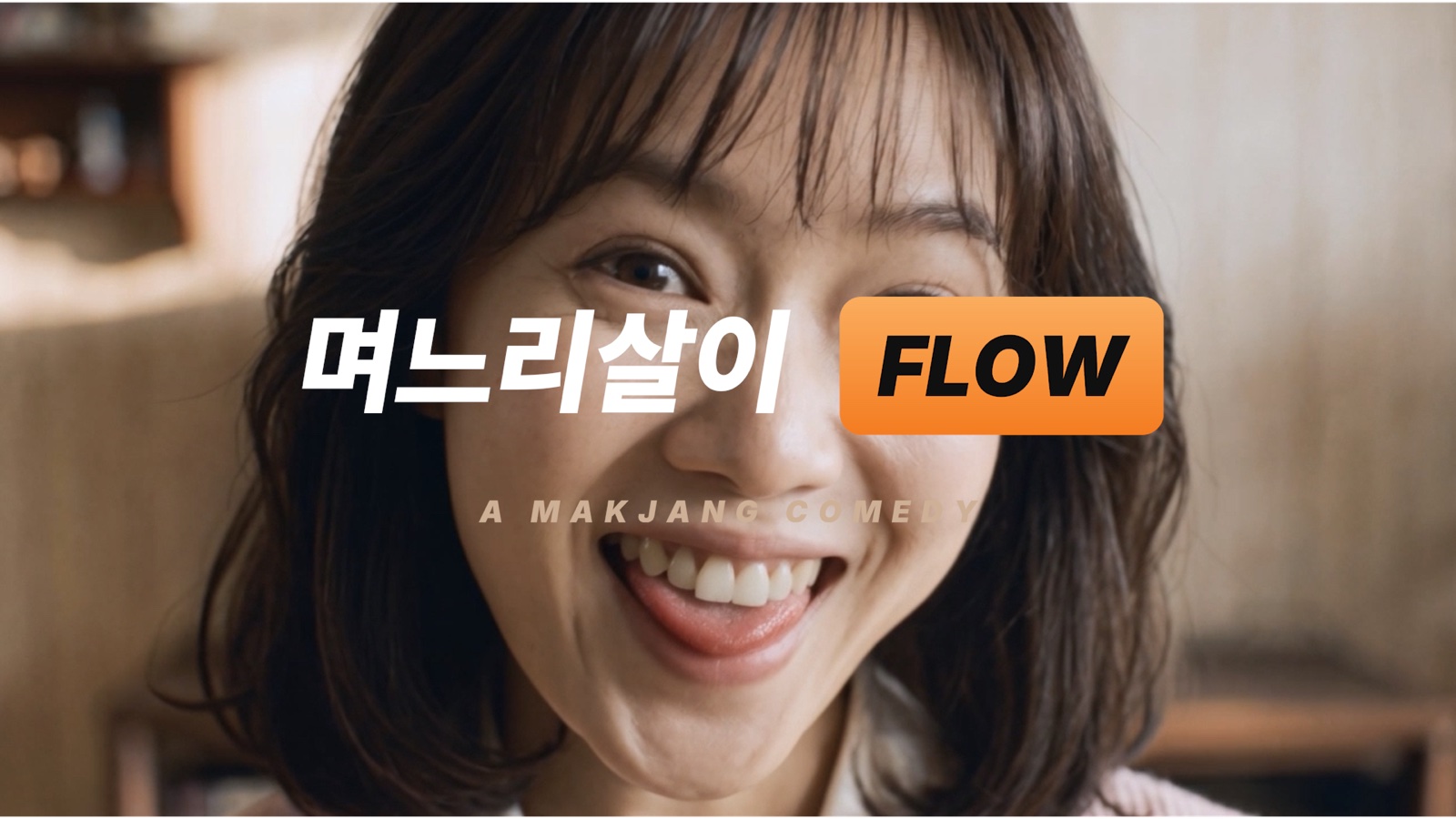
The 40 second makjang comedy does not meet the length requirement, so consider building a scene like it out to 1 to 3 minutes and entering it
The full video is at https://www.youtube.com/watch?v=thWE_b0mdrY and the challenge details are at hflux.co.kr/en/reward


댓글
댓글 쓰기